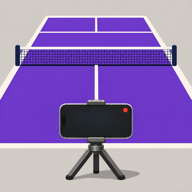
Instant replay for iPhone
Save the rally after it happens.
Mount your iPhone, play the point, then tap to save what just happened. For pickleball, tennis, padel, and other court sports.
Coming soon
How it works
From point to replay.
-
Set up courtside
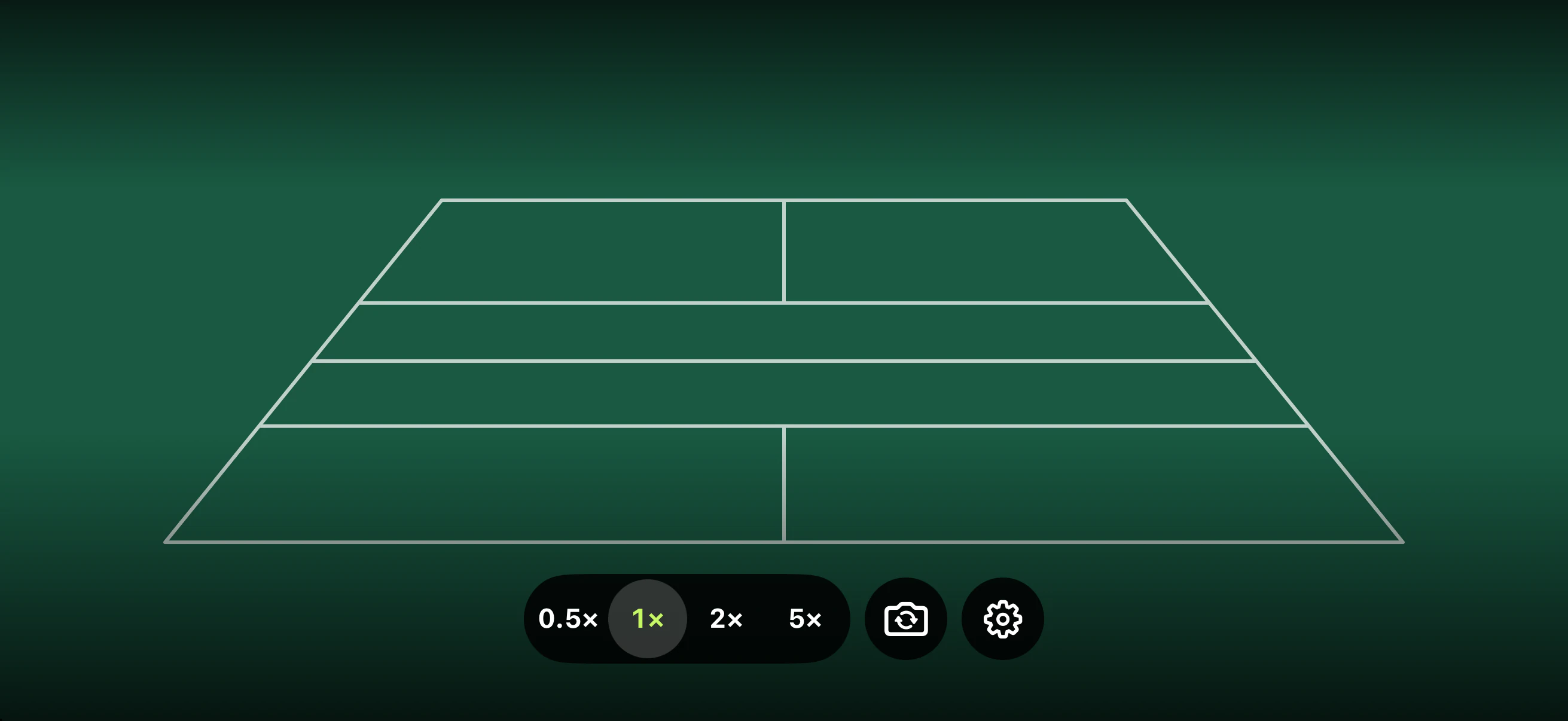
Mount your iPhone in portrait or landscape. Open Court Footage and use the live camera to frame the court.
-
Tap after the point
When a rally is worth keeping, tap the center of the preview. Court Footage saves the preceding clip to Photos.
-
Watch it back
Open the saved replay in Court Footage while the camera keeps recording. Find the clip in Photos whenever you want it.
Recording settings
Choose what you keep.
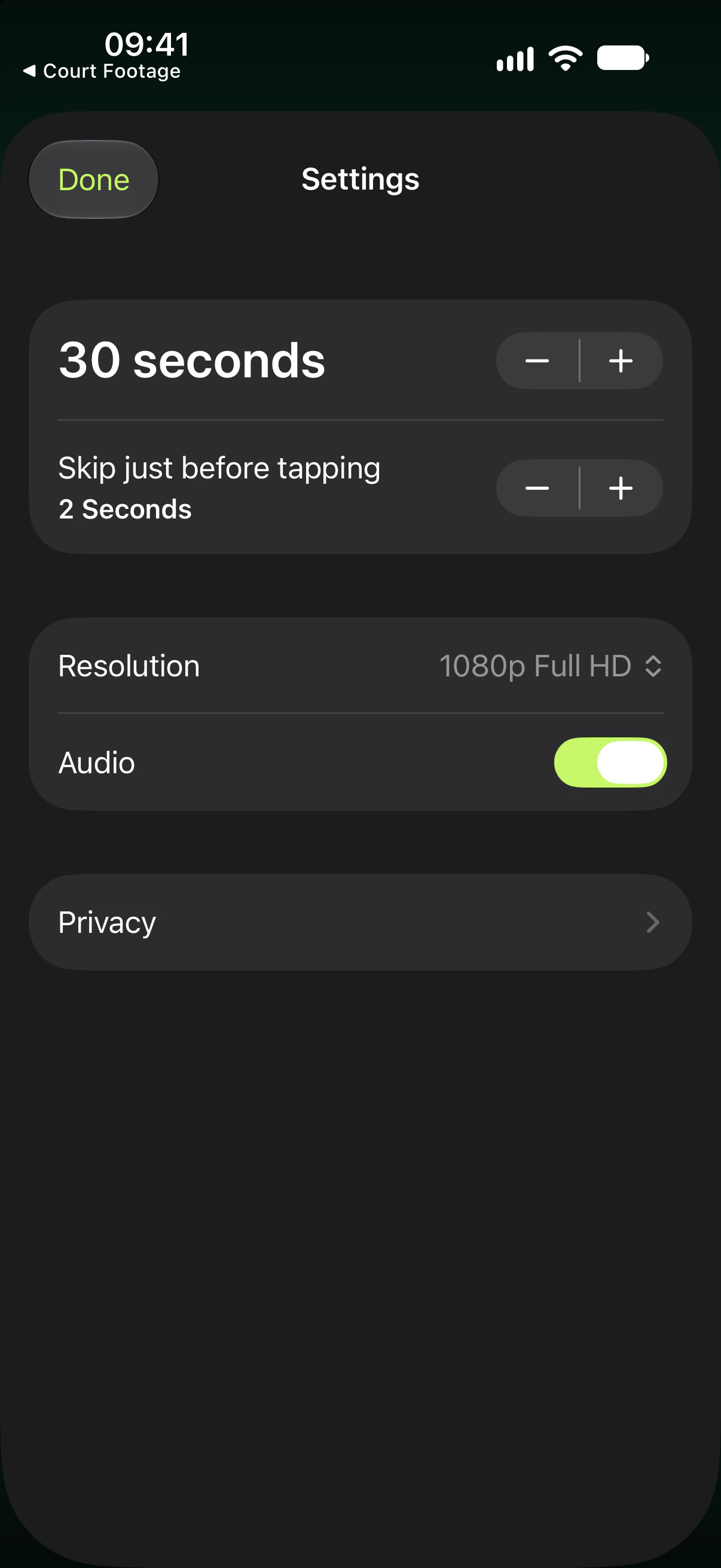
- 5–60 second clips
- Set how much of the rally to keep and trim up to 10 seconds just before the tap.
- Up to 4K
- Choose 720p, 1080p, or 4K when your camera supports it. See the estimated clip size before recording.
- Optional court audio
- Choose whether your clips include the sounds of play.
Your footage stays with you.
Court Footage processes recordings on your iPhone and doesn’t upload them. When you save a clip to Photos, any syncing follows your Photos and iCloud settings.